Free Tax Proration Calculator
Split a property tax bill between buyer and seller in seconds - no signup, nothing saved
Enter a closing date and a tax amount and the summary updates as you type. Estimate only - confirm the figures against the actual tax bill before closing.
How to use it
Five fields, and the numbers appear as you type
- Pick the tax period Annual, Monthly, Quarterly, Semi-Annual, School, or Village. The end of the period is worked out for you from the period and the closing date, and you can adjust the start date if your jurisdiction's period does not begin where the default lands.
- Enter the closing date This is the line that divides seller days from buyer days. Tick Include Closing Date if your local custom counts the day of closing as a seller day.
- Enter the amount due for the tax The full bill for the period, not a share of it. The calculator divides it into a per diem and splits it from there.
- Set the payment status Unpaid, Paid By Seller, Paid By Buyer, or Paid Through Closing. This is what decides whether money moves between the parties at closing, and in which direction.
- Read the Calculation Summary Total amount, number of days in the period, per diem, the buyer's share, the seller's share, and the net figure - either Buyer Owes Seller or Seller Credits Buyer.
How tax proration works
The arithmetic behind the summary panel
Days in the Period
Every proration starts with the length of the tax period. The calculator counts the days from the start of the period through its end, inclusive, so a full year comes to 365 days (366 in a leap year) rather than an assumed 360.
Per Diem
The tax amount divided by the days in the period gives the daily rate. It is carried to four decimal places so that long periods and large bills do not drift by a dollar or two when the shares are added back together.
Seller and Buyer Shares
Seller days run from the start of the tax period to closing; the buyer takes the rest of the period. The seller's share is their proportion of the bill, and the buyer's share is whatever is left, so the two always add back to the full amount.
Who Pays Whom
If the seller has already paid the bill, the buyer reimburses the buyer's share. If the buyer will pay it after closing, the seller credits the seller's share. If the bill is unpaid or paid through closing, the shares are informational and nothing changes hands.
Questions
What is a tax proration?
A tax proration splits a property tax bill between the buyer and the seller according to how much of the tax period each of them owned the property. The seller is responsible for the days up to closing and the buyer for the days after, so whoever ends up paying the whole bill is reimbursed for the other party's share at closing.
How is the per diem calculated?
The per diem is the tax amount divided by the number of days in the tax period. The seller's share is the per diem multiplied by the number of days from the start of the tax period through closing, and the buyer takes the remainder of the bill.
Should the closing date count as a seller day?
It depends on local custom and on what the contract says. The Include Closing Date option lets you count the day of closing as a seller day or leave it with the buyer, so you can match whichever convention your transaction follows.
What does the payment status change?
The buyer's and seller's shares are always calculated. The payment status determines whether money actually changes hands at closing: if the seller already paid the bill, the buyer reimburses the buyer's share; if the buyer will pay the bill after closing, the seller credits the seller's share.
Is the calculator free to use?
Yes. The calculator is free, requires no account or signup, and nothing you enter is saved. It runs the same proration calculation as Docketman's closing software.
Can I do this for a whole closing, not just one tax?
That is what Docketman is for. In the full product, prorations for city, county, school, sewer, and assessment taxes sit on the matter together, flow straight onto the Closing Disclosure and settlement statements, and feed the disbursement ledger - so the numbers only get entered once.
The same calculation, on the whole file
Inside Docketman the proration sits on the matter itself, with a tab for each tax you need to prorate - city, county, assessment, school, sewer, and more. Each one carries its payee, so the result does not stop at a number on screen:
- A tab per tax, each with its own period and amount
- Results flow onto the Closing Disclosure and settlement statements
- Amounts carry through to the disbursement ledger
- Entered once on the matter, never re-keyed
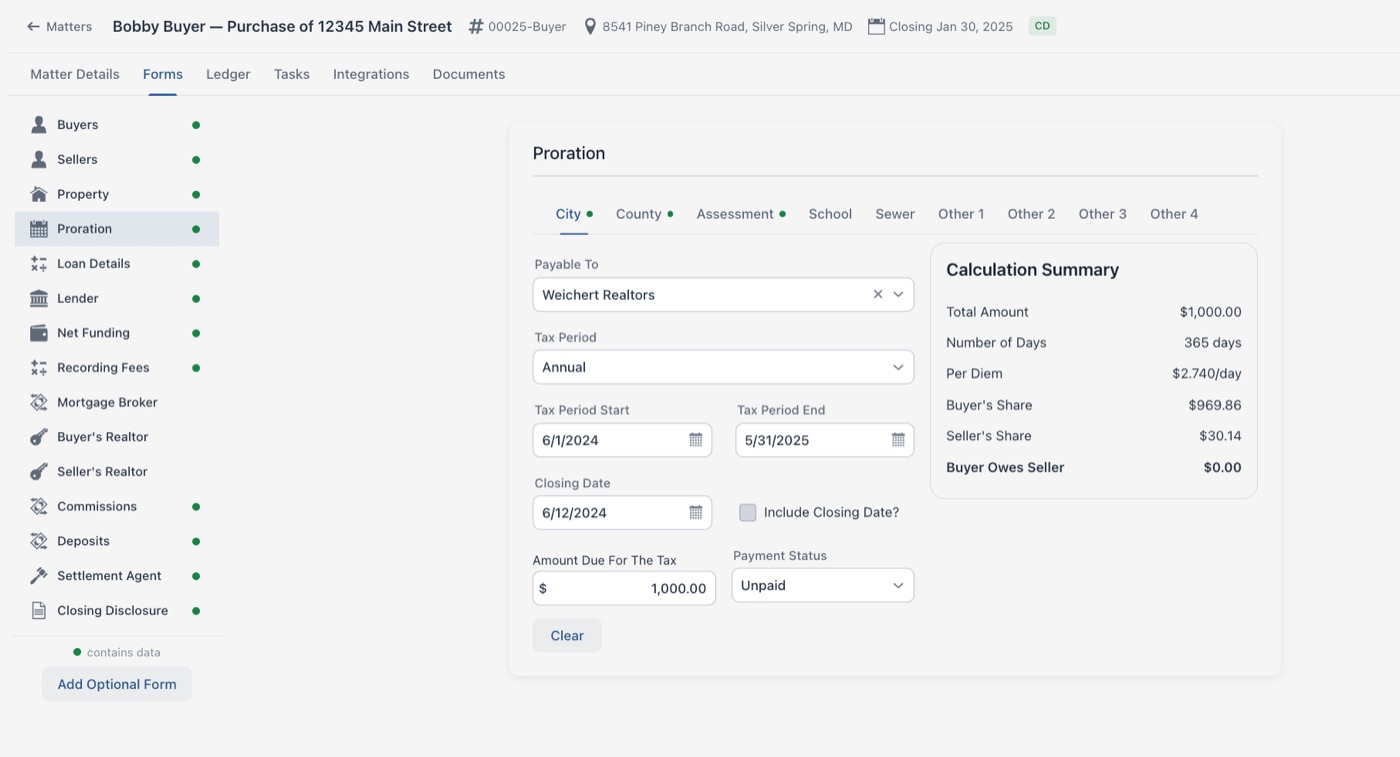
One calculation out of a whole closing
Docketman runs every proration on the file and carries the results onto the Closing Disclosure, the settlement statements, and the ledger automatically